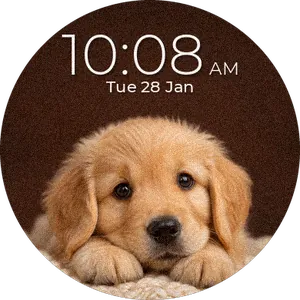
PuppyUser guide
This guide takes you step by step: install the watch face, select it on the watch and read the time and date. There is nothing to set up.
1Install the watch face
- On your phone, open the Connect IQ Store app (or Garmin Connect, then the watch icon, then Connect IQ Store).
- Search for Puppy and open its page.
- Tap Install. The face reaches the watch at the next sync (phone connected over Bluetooth).
Direct link to the watch face page: https://apps.garmin.com/apps/b292b4f9-e70d-4b45-a5c7-e1bf7c68a443
2The buttons
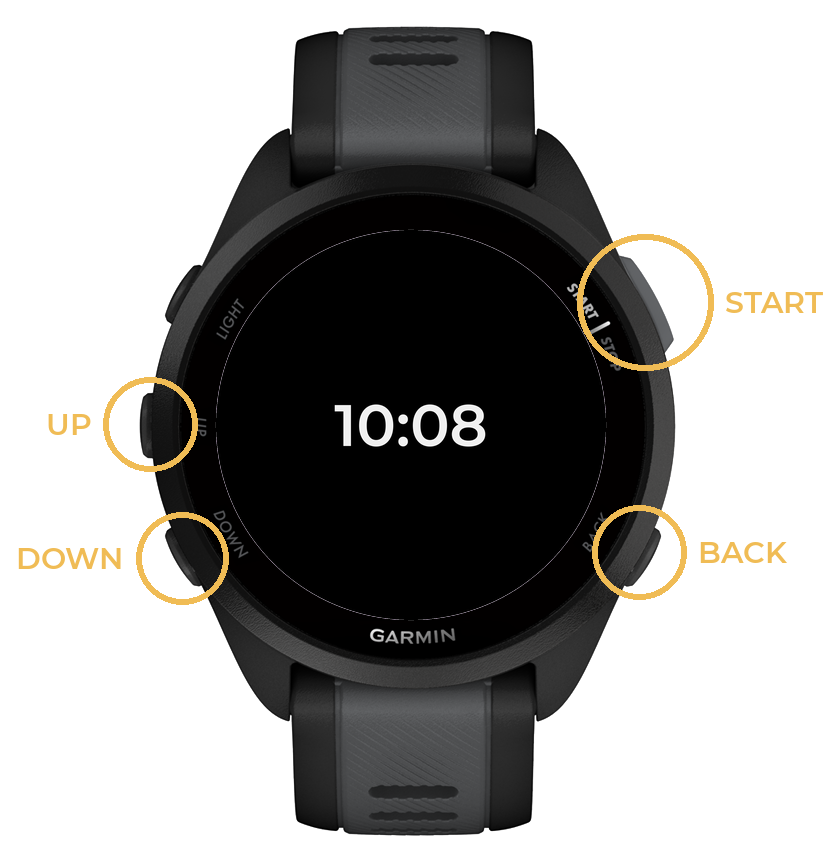
- UP / DOWN: move up / down a list. Hold UP: open the menu.
- START: confirm the highlighted choice.
- BACK: go back to the previous screen.
3Select the face on the watch
Select the face on the watch
- From the time screen, hold UP: the menu opens.
- With UP / DOWN, go to Watch Face, then press START.
- The faces scroll by: with UP / DOWN, go to Puppy, then press START.
- If a menu opens, go to Apply with UP / DOWN, then press START.
- The face is shown.
On touchscreen watches (Venu, vivoactive…) you can also hold your finger on the screen. Menu names may vary slightly between models.
4Reading the face
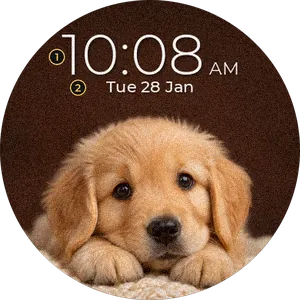
- Time, in 24 h or in 12 h with AM / PM following the watch setting.
- Day and date, in the language of the watch.
5Always-on mode
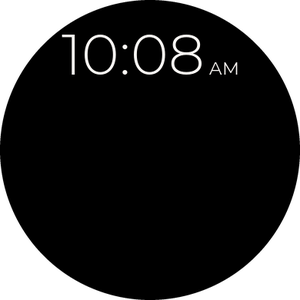
Keep the screen on (always-on display)
- From the time screen, hold UP: the menu opens.
- With UP / DOWN, go to System, then press START.
- With UP / DOWN, go to Display, then press START.
- With UP / DOWN, go to General Use, then press START.
- With UP / DOWN, go to Always On Display, then press START.
- Turn it on: press START if the box is not ticked.
- Press BACK as many times as needed to return to the time.
6Language, 12 / 24 h
The face follows the watch settings: language (English, French, German, Spanish, Italian, Portuguese, Dutch; English for any other language) and time format. To change them, use the watch system settings or Garmin Connect.
Change the language
- From the time screen, hold UP: the menu opens.
- With UP / DOWN, go to System, then press START.
- With UP / DOWN, go to Language, then press START.
- With UP / DOWN, go to the option you want, then press START. Options: your language.
- Press BACK as many times as needed to return to the time.
Switch to 12 h or 24 h
- From the time screen, hold UP: the menu opens.
- With UP / DOWN, go to System, then press START.
- With UP / DOWN, go to Time, then press START.
- With UP / DOWN, go to Time Format, then press START.
- With UP / DOWN, go to the option you want, then press START. Options: 12 hour, 24 hour.
- Press BACK as many times as needed to return to the time.
Menu names from Garmin’s Forerunner 165 manual; they may vary slightly with the watch model and its version.
7Frequently asked questions
- The time is in 12 h, or the date is in another language.
- The face follows the watch settings: see “Language, 12 / 24 h”.
- Can I show other data?
- No: the face shows the time and date, to leave room for the puppy.
- I cannot find any settings.
- This is normal: the face has none.
8Contact
A question, an idea? Write to coolscreens@pm.me: every message gets an answer.