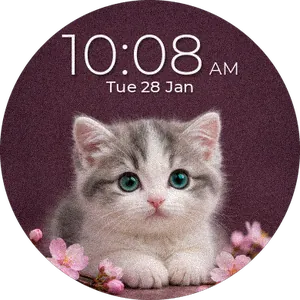
Kitten PROUser guide
This guide takes you step by step: install the watch face, select it on the watch, and have a new kitten each time or always your favourite.
1Install the watch face
- On your phone, open the Connect IQ Store app (or Garmin Connect, then the watch icon, then Connect IQ Store).
- Search for Kitten PRO and open its page.
- Tap Install. The face reaches the watch at the next sync (phone connected over Bluetooth).
Direct link to the watch face page: https://apps.garmin.com/apps/df157a38-9523-46d5-84d7-31ee7b1844cd
2The buttons
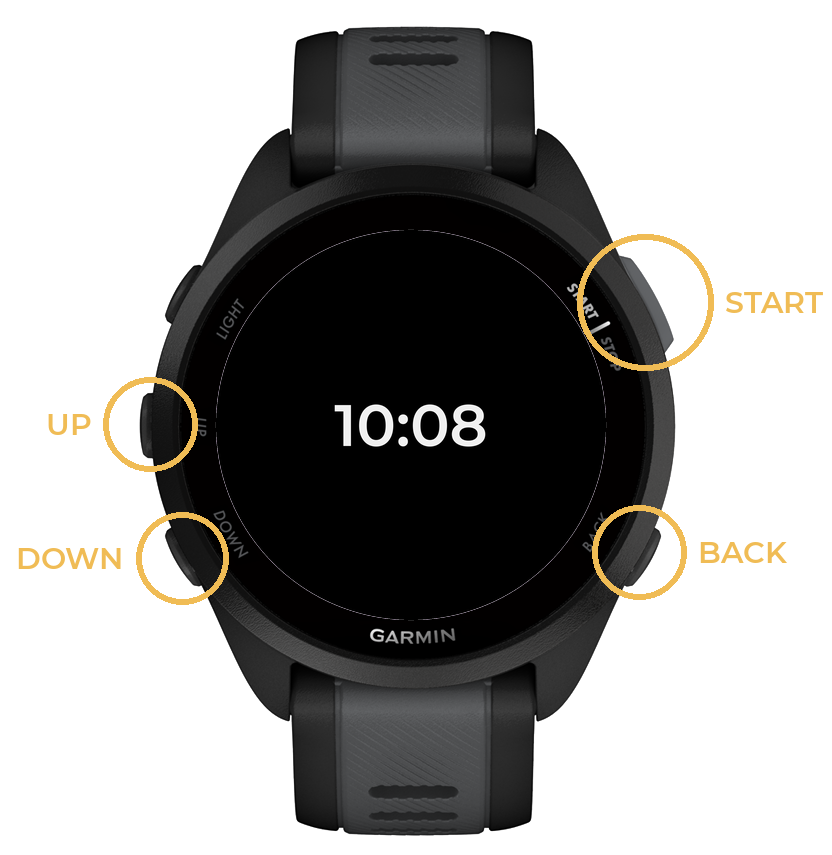
- UP / DOWN: move up / down a list. Hold UP: open the menu.
- START: confirm the highlighted choice.
- BACK: go back to the previous screen.
3Select the face on the watch
Select the face on the watch
- From the time screen, hold UP: the menu opens.
- With UP / DOWN, go to Watch Face, then press START.
- The faces scroll by: with UP / DOWN, go to Kitten PRO, then press START.
- If a menu opens, go to Apply with UP / DOWN, then press START.
- The face is shown.
On touchscreen watches (Venu, vivoactive…) you can also hold your finger on the screen. Menu names may vary slightly between models.
4Reading the face
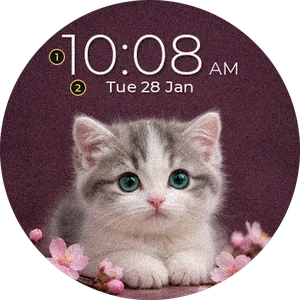
- Time, in 24 h or in 12 h with AM / PM following the watch setting.
- Day and date, in the language of the watch.
The picture shows the kitten of the free version (“Cherry blossom”); the time and date are in the same place on all 22 kittens.
5Customize on the watch
Open the Customize menu
- From the time screen, hold UP: the menu opens.
- With UP / DOWN, go to Watch Face, then press START.
- The faces scroll by: with UP / DOWN, go to Kitten PRO, then press START.
- With UP / DOWN, go to Customize, then press START.
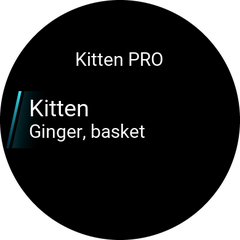
- The list of settings appears, with the current choice under each title: Kitten.

“New each time” is the original setting: each time the screen lights up, the face draws another kitten at random.
Have a new kitten each time
- From the time screen, hold UP: the menu opens.
- With UP / DOWN, go to Watch Face, then press START.
- The faces scroll by: with UP / DOWN, go to Kitten PRO, then press START.
- With UP / DOWN, go to Customize, then press START.
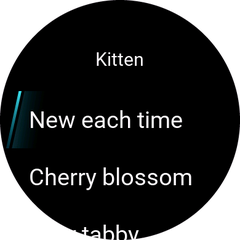
- With UP / DOWN, go to Kitten, then press START.
- The current option is highlighted when the list opens.
- With UP / DOWN, go to New each time, then press START.
- You are back in the list of settings: the new choice appears under Kitten.
- Press BACK as many times as needed to return to the time.
- The face shows your choice.
Always keep the same kitten
- From the time screen, hold UP: the menu opens.
- With UP / DOWN, go to Watch Face, then press START.
- The faces scroll by: with UP / DOWN, go to Kitten PRO, then press START.
- With UP / DOWN, go to Customize, then press START.
- With UP / DOWN, go to Kitten, then press START.
- The current option is highlighted when the list opens.
- With UP / DOWN, go to the option you want, then press START. Options: Cherry blossom, Grey tabby, Ginger, basket, White Persian, Blue British, Lavender, Siamese, Black, autumn, Teacup, Snow, Red scarf, Sleepy, Bengal, On its back, Two cuddlers, Butterfly, Christmas, Moon, Knitted hat, Peekaboo, Heart, Yarn ball.
- You are back in the list of settings: the new choice appears under Kitten.
- Press BACK as many times as needed to return to the time.
- The face shows your choice.

Back to the original settings
Repeat the procedure of each setting, choosing: Kitten = New each time.
6Customize with Garmin Connect
- Open Garmin Connect on the phone and tap the watch icon.
- Go to Appearance > Watch Faces > Kitten PRO > Settings.
- Choose your options, then tap Save. The face changes at the next sync.
Menu names in Garmin Connect may vary with the app version.
7The options
Kitten
The pictures of the kittens are not shown in this guide: only their names are given, in menu order. “Cherry blossom” is the one of the free version. To see a kitten, choose it on the watch (or look at the face’s page in the Connect IQ Store).
- New each time
- Cherry blossom
- Grey tabby
- Ginger, basket
- White Persian
- Blue British
- Lavender
- Siamese
- Black, autumn
- Teacup
- Snow
- Red scarf
- Sleepy
- Bengal
- On its back
- Two cuddlers
- Butterfly
- Christmas
- Moon
- Knitted hat
- Peekaboo
- Heart
- Yarn ball
8Always-on mode
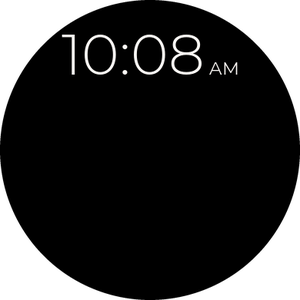
Keep the screen on (always-on display)
- From the time screen, hold UP: the menu opens.
- With UP / DOWN, go to System, then press START.
- With UP / DOWN, go to Display, then press START.
- With UP / DOWN, go to General Use, then press START.
- With UP / DOWN, go to Always On Display, then press START.
- Turn it on: press START if the box is not ticked.
- Press BACK as many times as needed to return to the time.
9Language, 12 / 24 h
The face follows the watch settings: language (English, French, German, Spanish, Italian, Portuguese, Dutch; English for any other language) and time format. To change them, use the watch system settings or Garmin Connect.
Change the language
- From the time screen, hold UP: the menu opens.
- With UP / DOWN, go to System, then press START.
- With UP / DOWN, go to Language, then press START.
- With UP / DOWN, go to the option you want, then press START. Options: your language.
- Press BACK as many times as needed to return to the time.
Switch to 12 h or 24 h
- From the time screen, hold UP: the menu opens.
- With UP / DOWN, go to System, then press START.
- With UP / DOWN, go to Time, then press START.
- With UP / DOWN, go to Time Format, then press START.
- With UP / DOWN, go to the option you want, then press START. Options: 12 hour, 24 hour.
- Press BACK as many times as needed to return to the time.
Menu names from Garmin’s Forerunner 165 manual; they may vary slightly with the watch model and its version.
10Frequently asked questions
- The time is in 12 h, or the date is in another language.
- The face follows the watch settings: see “Language, 12 / 24 h”.
- Can I show other data?
- No: the face shows the time and date, to leave room for the kitten.
- I cannot find “Customize” on the watch.
- Some models do not offer settings on the watch: use Garmin Connect (see “Customize with Garmin Connect”).
- The kitten no longer changes.
- A fixed kitten is selected: set “New each time” again in the settings.
- A kitten I have already seen comes back.
- This is normal: the choice is made at random among the 22 kittens, and it starts again when the watch restarts the face.
11Contact
A question, an idea? Write to coolscreens@pm.me: every message gets an answer.