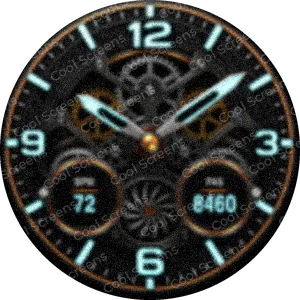
Obsidian PulseUser guide
This guide takes you step by step: install the watch face, select it on the watch, read it, choose the colour of the glass and the data of each circle.
1Install the watch face
- On your phone, open the Connect IQ Store app (or Garmin Connect, then the watch icon, then Connect IQ Store).
- Search for Obsidian Pulse and open its page.
- Tap Install. The face reaches the watch at the next sync (phone connected over Bluetooth).
Direct link to the watch face page: https://apps.garmin.com/apps/c6bb213a-a96a-4d2b-8c4d-5314dc6a5381
2The buttons
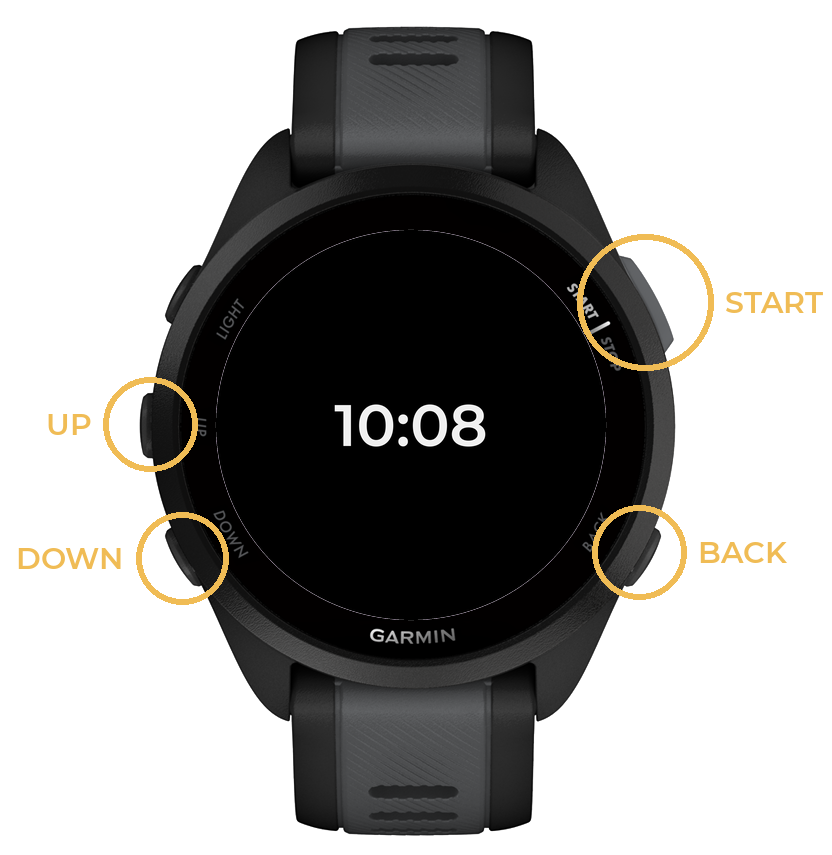
- UP / DOWN: move up / down a list. Hold UP: open the menu.
- START: confirm the highlighted choice.
- BACK: go back to the previous screen.
3Select the face on the watch
Select the face on the watch
- From the time screen, hold UP: the menu opens.
- With UP / DOWN, go to Watch Face, then press START.
- The faces scroll by: with UP / DOWN, go to Obsidian Pulse, then press START.
- If a menu opens, go to Apply with UP / DOWN, then press START.
- The face is shown.
On touchscreen watches (Venu, vivoactive…) you can also hold your finger on the screen. Menu names may vary slightly between models.
4Reading the face
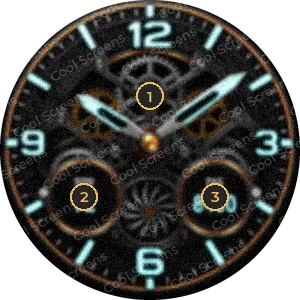
- Hour and minute hands.
- Left circle: a data of your choice (heart rate at first).
- Right circle: a data of your choice (steps at first).
While the screen is on (as soon as you raise your wrist), the movement comes alive: the wheels turn, the turbine spins. Each circle shows the name of its data above the value; “--” when the watch does not give it. In this guide the artwork of the face is altered on purpose; see the real look on the watch (or on the face’s page in the Connect IQ Store).
5Customize on the watch
Open the Customize menu
- From the time screen, hold UP: the menu opens.
- With UP / DOWN, go to Watch Face, then press START.
- The faces scroll by: with UP / DOWN, go to Obsidian Pulse, then press START.
- With UP / DOWN, go to Customize, then press START.
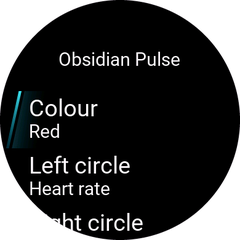
- The list of settings appears, with the current choice under each title: Colour, Left circle, Right circle.
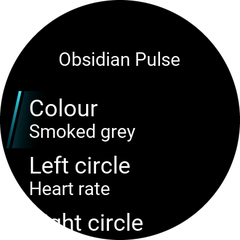
Change the colour of the glass
- From the time screen, hold UP: the menu opens.
- With UP / DOWN, go to Watch Face, then press START.
- The faces scroll by: with UP / DOWN, go to Obsidian Pulse, then press START.
- With UP / DOWN, go to Customize, then press START.
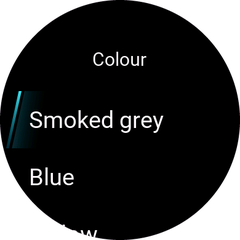
- With UP / DOWN, go to Colour, then press START.
- The current option is highlighted when the list opens.
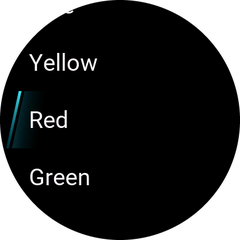
- With UP / DOWN, go to the option you want, then press START. Options: Smoked grey, Blue, Yellow, Red, Green.
- You are back in the list of settings: the new choice appears under Colour.
- Press BACK as many times as needed to return to the time.
- The face shows your choice.
Change the data of a circle
- From the time screen, hold UP: the menu opens.
- With UP / DOWN, go to Watch Face, then press START.
- The faces scroll by: with UP / DOWN, go to Obsidian Pulse, then press START.
- With UP / DOWN, go to Customize, then press START.
- With UP / DOWN, go to Left circle, then press START.
- The current option is highlighted when the list opens.
- With UP / DOWN, go to the option you want, then press START. Options: Heart rate, Steps, Battery, Body Battery, Stress, Calories, Distance, Floors climbed, Altitude, Temperature, Notifications, Intensity minutes.
- You are back in the list of settings: the new choice appears under Left circle.
- Press BACK as many times as needed to return to the time.
- The face shows your choice.
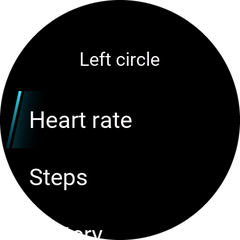
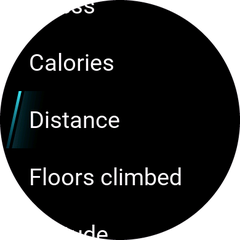
Same steps for the right circle: choose Right circle instead.
Back to the original settings
Repeat the procedure of each setting, choosing: Colour = Smoked grey, Left circle = Heart rate, Right circle = Steps.
6Customize with Garmin Connect
- Open Garmin Connect on the phone and tap the watch icon.
- Go to Appearance > Watch Faces > Obsidian Pulse > Settings.
- Choose your options, then tap Save. The face changes at the next sync.
Menu names in Garmin Connect may vary with the app version.
7The options
Colour
The colour tints the glass over the movement; the hands, markers and bezel do not change. The original pictures are not shown in this guide: each colour is shown as a plain swatch.


Left circle / Right circle
Each circle can show one of these 12 data. Units (km or mi, m or ft, °C or °F) follow the watch settings. A data your watch does not measure shows “--”.
- Heart rate
- Steps
- Battery
- Body Battery
- Stress
- Calories
- Distance
- Floors climbed
- Altitude
- Temperature
- Notifications
- Intensity minutes
8Always-on mode
Keep the screen on (always-on display)
- From the time screen, hold UP: the menu opens.
- With UP / DOWN, go to System, then press START.
- With UP / DOWN, go to Display, then press START.
- With UP / DOWN, go to General Use, then press START.
- With UP / DOWN, go to Always On Display, then press START.
- Turn it on: press START if the box is not ticked.
- Press BACK as many times as needed to return to the time.
9Language and units
The names of the data follow the language of the watch (French, English, German, Spanish, Italian, Portuguese or Dutch; English for the other languages) and the values its units.
Change the language
- From the time screen, hold UP: the menu opens.
- With UP / DOWN, go to System, then press START.
- With UP / DOWN, go to Language, then press START.
- With UP / DOWN, go to the option you want, then press START. Options: your language.
- Press BACK as many times as needed to return to the time.
Switch to °C or °F
- From the time screen, hold UP: the menu opens.
- With UP / DOWN, go to System, then press START.
- With UP / DOWN, go to Units, then press START.
- Go to the measure to change (temperature, distance…) with UP / DOWN, then press START.
- With UP / DOWN, go to the option you want, then press START. Options: °C, °F.
- Press BACK as many times as needed to return to the time.
Menu names from Garmin’s Forerunner 165 manual; they may vary slightly with the watch model and its version.
10Frequently asked questions
- The movement does not turn.
- It moves only while the screen is fully on, for a few seconds after you raise your wrist or press a button; in always-on mode it is hidden to save the battery.
- A circle shows “--”.
- Your watch does not measure this data, or not yet (for example temperature without weather, or stress just after putting the watch on). Choose another data for this circle.
- I cannot find “Customize” on the watch.
- Some models do not offer settings on the watch: use Garmin Connect (see “Customize with Garmin Connect”).
11Contact
A question, an idea? Write to coolscreens@pm.me: every message gets an answer.