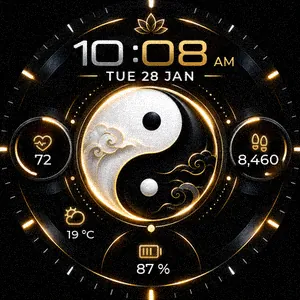
Golden Yin-Yang PROUser guide
This guide takes you step by step: install the watch face, select it on the watch, read each area and set it up.
1Install the watch face
- On your phone, open the Connect IQ Store app (or Garmin Connect, then the watch icon, then Connect IQ Store).
- Search for Golden Yin-Yang PRO and open its page.
- Tap Install. The face reaches the watch at the next sync (phone connected over Bluetooth).
2The buttons
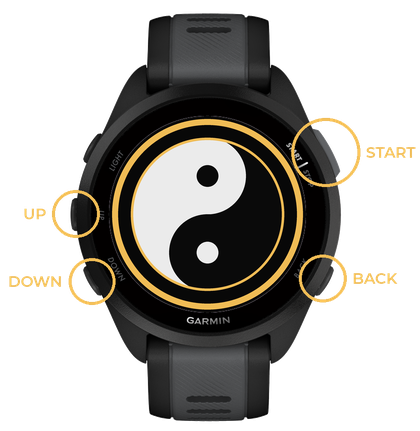
- UP / DOWN: move up / down a list. Hold UP: open the menu.
- START: confirm the highlighted choice.
- BACK: go back to the previous screen.
3Select the face on the watch
Select the face on the watch
- From the time screen, hold UP: the menu opens.
- With UP / DOWN, go to Watch Face, then press START.
- The faces scroll by: with UP / DOWN, go to Golden Yin-Yang PRO, then press START.
- If a menu opens, go to Apply with UP / DOWN, then press START.
- The face is shown.
On touchscreen watches (Venu, vivoactive…) you can also hold your finger on the screen. Menu names may vary slightly between models.
4Reading the face
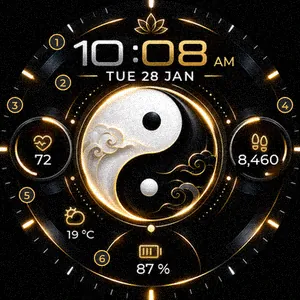
- Time, 24 h or 12 h following the watch setting.
- Day and date, in the language of the watch.
- Left circle: heart rate by default, or the data you chose.
- Right circle: steps by default, or the data you chose.
- Weather: icon of the current conditions and temperature.
- Battery level.
5The icons
Weather


Battery


The fill follows the level; the lightning bolt means the watch is charging.
6Customize on the watch
Open the Customize menu
- From the time screen, hold UP: the menu opens.
- With UP / DOWN, go to Watch Face, then press START.
- The faces scroll by: with UP / DOWN, go to Golden Yin-Yang PRO, then press START.
- With UP / DOWN, go to Customize, then press START.
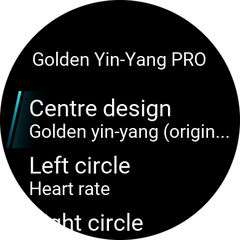
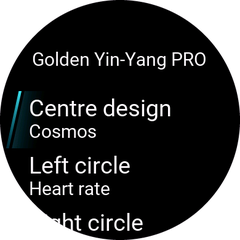
- The list of settings appears, with the current choice under each title: Centre design, Left circle, Right circle, Always-on display, Ring colour.
Change: Centre design
- From the time screen, hold UP: the menu opens.
- With UP / DOWN, go to Watch Face, then press START.
- The faces scroll by: with UP / DOWN, go to Golden Yin-Yang PRO, then press START.
- With UP / DOWN, go to Customize, then press START.
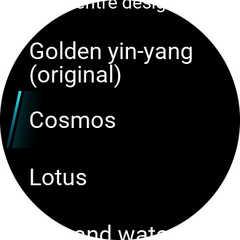
- With UP / DOWN, go to Centre design, then press START.
- The current option is highlighted when the list opens.
- With UP / DOWN, go to the option you want, then press START. Options: Golden yin-yang (original), Cosmos, Lotus, Fire and water, Carved jade, Spring and winter, Zen mountains, Sun and moon.
- You are back in the list of settings: the new choice appears under Centre design.
- Press BACK as many times as needed to return to the time.
- The face shows your choice.
Change: Left circle
- From the time screen, hold UP: the menu opens.
- With UP / DOWN, go to Watch Face, then press START.
- The faces scroll by: with UP / DOWN, go to Golden Yin-Yang PRO, then press START.
- With UP / DOWN, go to Customize, then press START.
- With UP / DOWN, go to Left circle, then press START.
- The current option is highlighted when the list opens.
- With UP / DOWN, go to the option you want, then press START. Options: Heart rate, Steps, Calories, Body Battery, Stress, Pulse Ox, Altitude.
- You are back in the list of settings: the new choice appears under Left circle.
- Press BACK as many times as needed to return to the time.
- The face shows your choice.
Change: Right circle
- From the time screen, hold UP: the menu opens.
- With UP / DOWN, go to Watch Face, then press START.
- The faces scroll by: with UP / DOWN, go to Golden Yin-Yang PRO, then press START.
- With UP / DOWN, go to Customize, then press START.
- With UP / DOWN, go to Right circle, then press START.
- The current option is highlighted when the list opens.
- With UP / DOWN, go to the option you want, then press START. Options: Heart rate, Steps, Calories, Body Battery, Stress, Pulse Ox, Altitude.
- You are back in the list of settings: the new choice appears under Right circle.
- Press BACK as many times as needed to return to the time.
- The face shows your choice.
Change: Always-on display
- From the time screen, hold UP: the menu opens.
- With UP / DOWN, go to Watch Face, then press START.
- The faces scroll by: with UP / DOWN, go to Golden Yin-Yang PRO, then press START.
- With UP / DOWN, go to Customize, then press START.
- With UP / DOWN, go to Always-on display, then press START.
- The current option is highlighted when the list opens.
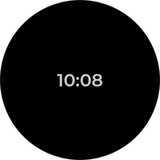
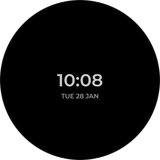
- With UP / DOWN, go to the option you want, then press START. Options: Time only, Time and date, Time, date and markers.
- You are back in the list of settings: the new choice appears under Always-on display.
- Press BACK as many times as needed to return to the time.
- The face shows your choice.
Change: Ring colour
- From the time screen, hold UP: the menu opens.
- With UP / DOWN, go to Watch Face, then press START.
- The faces scroll by: with UP / DOWN, go to Golden Yin-Yang PRO, then press START.
- With UP / DOWN, go to Customize, then press START.
- With UP / DOWN, go to Ring colour, then press START.
- The current option is highlighted when the list opens.
- With UP / DOWN, go to the option you want, then press START. Options: Gold, Jade, Ruby, Sapphire, Platinum, Rose gold, Amethyst.
- You are back in the list of settings: the new choice appears under Ring colour.
- Press BACK as many times as needed to return to the time.
- The face shows your choice.
Back to the original settings
Repeat the procedure of each setting, choosing: Centre design = Golden yin-yang (original); Left circle = Heart rate; Right circle = Steps; Always-on display = Time only; Ring colour = Gold.
7Customize with Garmin Connect
- Open Garmin Connect on the phone and tap the watch icon.
- Go to Appearance > Watch Faces > Golden Yin-Yang PRO > Settings.
- Choose your options, then tap Save. The face changes at the next sync.
Menu names in Garmin Connect may vary with the app version.
8The options
Centre design
The original pictures of the designs are not shown in this guide: only their names are given. To see a design, choose it on the watch (or look at the face’s page in the Connect IQ Store).
- Golden yin-yang (original)
- Cosmos
- Lotus
- Fire and water
- Carved jade
- Spring and winter
- Zen mountains
- Sun and moon
Left circle / Right circle


Always-on display
Ring colour
The original pictures are not shown in this guide: each colour is shown as a plain ring. The real look can be seen on the watch (or on the face’s page in the Connect IQ Store).







9Always-on mode
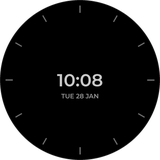
At rest the screen dims and shows only the time, in the centre, to save the battery. The time moves slightly every minute to protect the AMOLED screen. If the screen turns off completely, turn on the always-on display in the watch display settings.
The Always-on display setting (see “The options”) adds the date, or the date and the markers.
Keep the screen on (always-on display)
- From the time screen, hold UP: the menu opens.
- With UP / DOWN, go to System, then press START.
- With UP / DOWN, go to Display, then press START.
- With UP / DOWN, go to General Use, then press START.
- With UP / DOWN, go to Always On Display, then press START.
- Turn it on: press START if the box is not ticked.
- Press BACK as many times as needed to return to the time.
10Language, 12 / 24 h, °C / °F
The face follows the watch settings: language (English, French, German, Spanish, Italian, Portuguese, Dutch; English for any other language), time format and units. To change them, use the watch system settings or Garmin Connect.
Change the language
- From the time screen, hold UP: the menu opens.
- With UP / DOWN, go to System, then press START.
- With UP / DOWN, go to Language, then press START.
- With UP / DOWN, go to the option you want, then press START. Options: your language.
- Press BACK as many times as needed to return to the time.
Switch to 12 h or 24 h
- From the time screen, hold UP: the menu opens.
- With UP / DOWN, go to System, then press START.
- With UP / DOWN, go to Time, then press START.
- With UP / DOWN, go to Time Format, then press START.
- With UP / DOWN, go to the option you want, then press START. Options: 12 hour, 24 hour.
- Press BACK as many times as needed to return to the time.
Switch to °C or °F
- From the time screen, hold UP: the menu opens.
- With UP / DOWN, go to System, then press START.
- With UP / DOWN, go to Format, then press START.
- With UP / DOWN, go to Units, then press START.
- Go to the measure to change (temperature, distance…) with UP / DOWN, then press START.
- With UP / DOWN, go to the option you want, then press START. Options: °C, °F.
- Press BACK as many times as needed to return to the time.
Menu names from Garmin’s Forerunner 165 manual; they may vary slightly with the watch model and its version.
11Frequently asked questions
- The temperature is replaced by a flame and a number.
- The watch has no recent weather: the face shows today’s calories. Check that the phone is connected and that Garmin Connect can use your location.
- A value shows “--”.
- The data is not available yet (for example the heart rate just after putting the watch on).
- The time is in 12 h, or the date is in another language.
- The face follows the watch settings: see “Language, 12 / 24 h, °C / °F”.
- I cannot find “Customize” on the watch.
- Some models do not offer settings on the watch: use Garmin Connect (see “Customize with Garmin Connect”).
12Contact
A question, an idea? Write to coolscreens@pm.me: every message gets an answer.